


Requirements for Digital Plans & Documents

The Development Services Department (DSD) requires that all new plans and documents to be digital (PDF) and formatted correctly. All requirements below ensure that files, including initial submissions and rechecks, can be reviewed and compared electronically. Failure to meet requirements will delay plan and document approval, ultimately delaying the issuance of a permit.
Use the following two tools when uploading/submitting plan sets into the online permitting portal:
e-PlanSNAPPTM
Use e-PlanSNAPP to identify sheet numbers that are missing or duplicated by uploading all Building Construction Plans, Engineering Plans and other documents required in the project review process. The tool also helps customers add or edit sheet numbers.
ScoutTM
Use Scout validate that your PDF documents meet the submittal requirements in this guide.
File Size
The maximum size of each file you can upload is 200 MB. File sizes exceeding this size will be rejected. To ensure your file is accepted, return to the source document and create PDFs that meet the file size limit.
Page Size
Do not mix page sizes; all pages in a plan set must be the same size. To comply with the page sizes listed below, adjust the paper size in the source document as needed.
- DSD-approved Documents, Forms and Reports
PDFs must measure 8.5 by 11 inches. - Plan Sets
PDFs should be sized between 11 by 17 inches and 36 by 48 inches. The most common sizes for plan sets are:- 11 by 17 inches;
- 24 by 36 inches; or
- 36 by 48 inches.
Page Orientation
Do not mix page orientations. When a mix of both landscape and portrait mode pages is provided in a single set, the sheet numbering will target the region based on the orientation of the first page encountered. This will lead to rejections and delays in the review process.
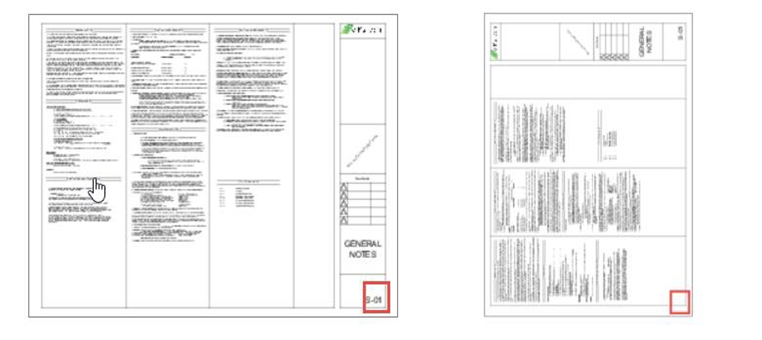
Page/Sheet Numbering
The following rules must be implemented to avoid plan rejection and delays.
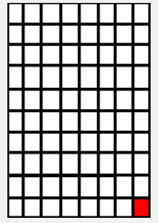
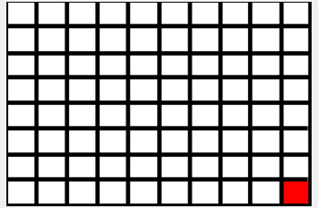
Place page numbers in the bottom right corner of each sheet.
Portrait
Landscape
- Use Arial or Helvetica fonts with clear, continuous characters.
- Scan plan sets at a minimum resolution of 150 DPI, avoiding compression artifacts.
- Set the Z coordinate value of the text to zero.
- Page numbers must be alphanumeric, starting with a Discipline Letter followed by the sheet number. Refer to the Discipline Letter Chart and Designated Templates below.
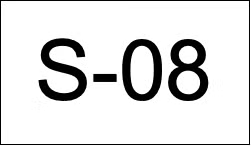
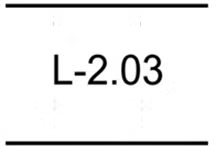
Good Examples
The sheet number examples below are in a large, clear, true-type font with adequate space around each character,
following the pattern rules.

Bad Examples
The sheet number examples below contain bad font styles or break patterns.
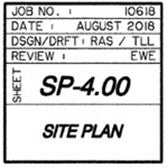
The example contains a "split box" with lettering. Only include the plan set numbers; don’t include additional information.
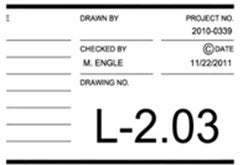
The example contains inadequate space around the lettering/numbering.
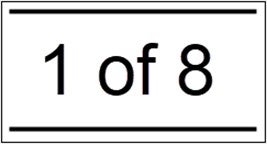
The example uses “of” format.
Discipline Letters
Use "B" for any disciplines not listed below.
- A for Architectural
- B for Building
- C for Civil
- E for Electrical
- F for Fire Protection
- G for Geotechnical
- GN for General Notes
- ID for Interior Designs
- K for Kitchen
- L for Landscape
- M for Mechanical
- P for Plumbing/Gas
- S for Structural
- T for Title 24 Energy Forms
- TS/CS for Title Sheet/Cover Sheet
Sheet Numbering Reminders
- Each Sheet Number must be unique. Duplicate sheet numbers are not permitted.
- Sheet Number cannot have three letters together (for example, AAD01 will be rejected, AA01 will work).
- Sheet Number cannot have four digits together (for example, A0001 will be rejected, and A001 will work).
- The system will ignore Sheet Number matches that include "OF" as part of the string.
Sheet Numbering Styles
Use the designated templates or follow the sheet numbering styles below to ensure timely review processing.
- Don't use spaces, special characters or lower-case letters.
- Avoid Non-True Type fonts and fanciful fonts, especially those appearing as italics, outlines, overlapping text, or replicating handwriting.
- Don't use hollow or outline fonts:

- Don't use overlapping or handwriting fonts:

- Don't use non-standard and non-continuous (broken) fonts:

- Don't use fonts where "1," "L" and 'I' appear the same.
- Don't modify the original font through style option changes.
- Don't write or draw anything next to or on top of the sheet number.
- Ensure there is sufficient spacing around sheet numbers and avoid overlapping.
Password Protection
Files must not be password-protected.
- Remove the password protection to enable users to access the PDF.
If the PDF cannot be opened, the file will be rejected.
Annotations & Comments
An annotation is anything that shows up in the Adobe Reader "Comment" panel. This might include a "comment," "stamp," or font issue like SHX Text from AutoCad.
To remove annotations in a PDF, utilize the print-to-PDF option. This method removes annotations by "flattening" the PDF.
Designated Templates
Use the designated templates to ensure that the plans are appropriately formatted and available in AutoCAD® (CAD/DWG), Portable Document Format (PDF) for viewing using Adobe Acrobat Reader, and DXF/ASCII text. These Building Permit and Engineering Design templates also include the standard notes required for many project types, which will help expedite your reviews.
Inserting and Deleting Sheets For Resubmittals
- The resubmittal must always include the full plan set. Partial submittals are not accepted.
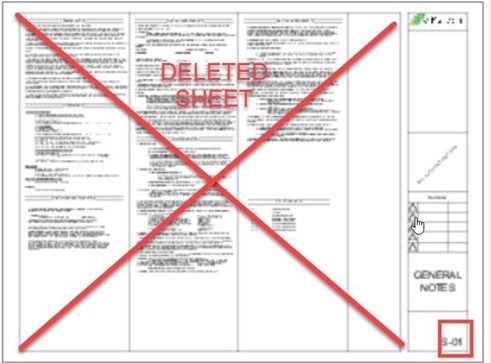
Add a strike and a "DELETED SHEET" label to delete a sheet from the revised plan. The corresponding sheet number must be visible.
- Revised plans may be reordered and have inserted sheets. However, the newly inserted sheets must always have a new, unique number. Use e-PlanSNAPP to identify sheet numbers that are missing or duplicated. The tool also helps customers add or edit sheet numbers.